
It is possible to use a phone or tablet as a signal generator by simply uploading an app. The one shown on this page is called Function Generator and is completely free. You then need to purchase a 3.5mm jack lead as shown in the diagram below.
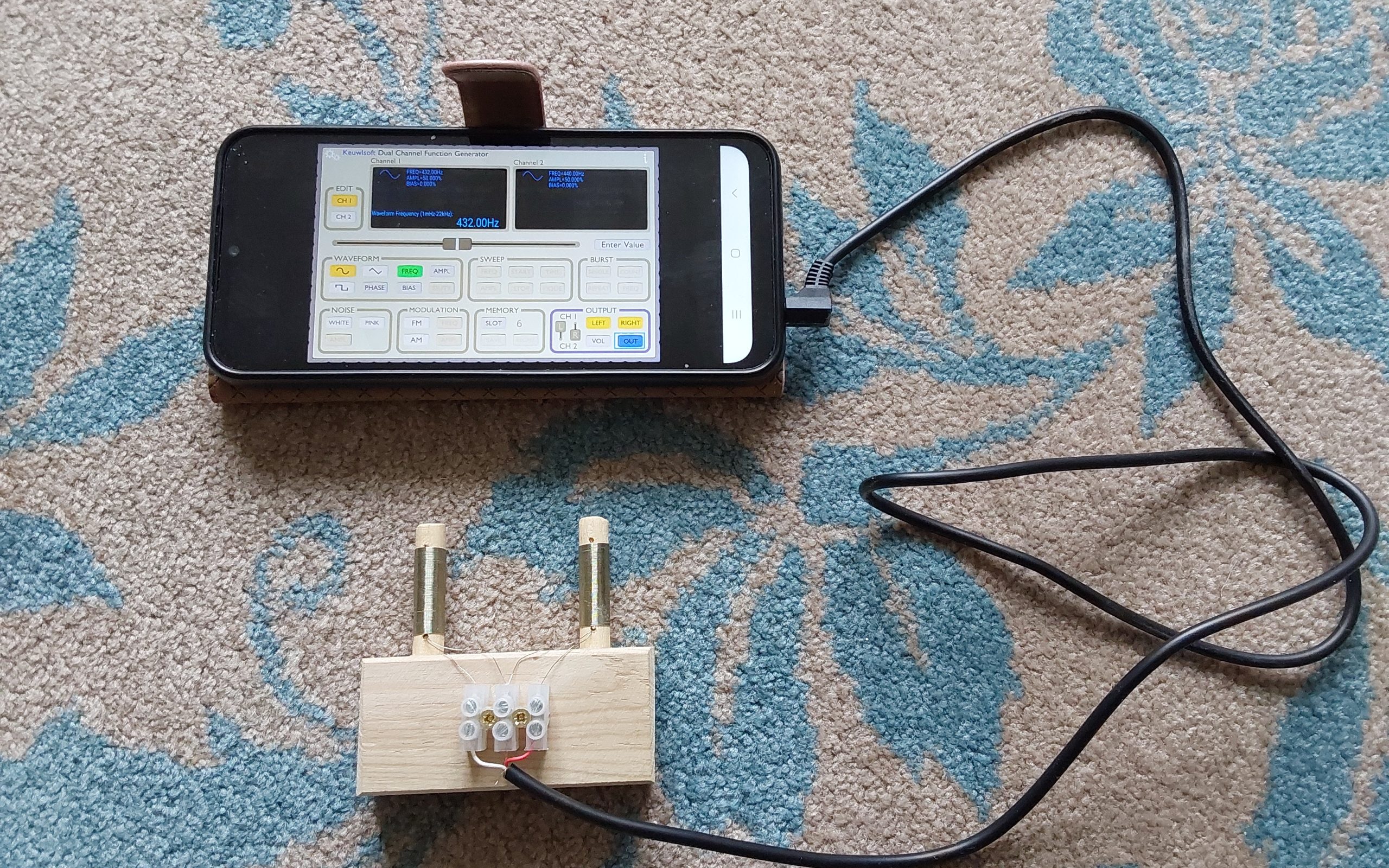
It is important that the wiring is set up correctly, and we therefore recommend the purchase of a simple multimeter. The tip of the jack plug is Left, the central segment is Right, the final section is Common/Earth. However, the colour of the wires is not standardised, which is why the multimeter is necessary. You will need to use the continuity setting to determine which of the coloured wires corresponds to each channel. In the photo above, Left is red and Right is white.
To make things simple, we are going to assign Channel 1 to the Left output and Channel 2 to the Right output. The photo below shows the Function Generator when it is first downloaded.
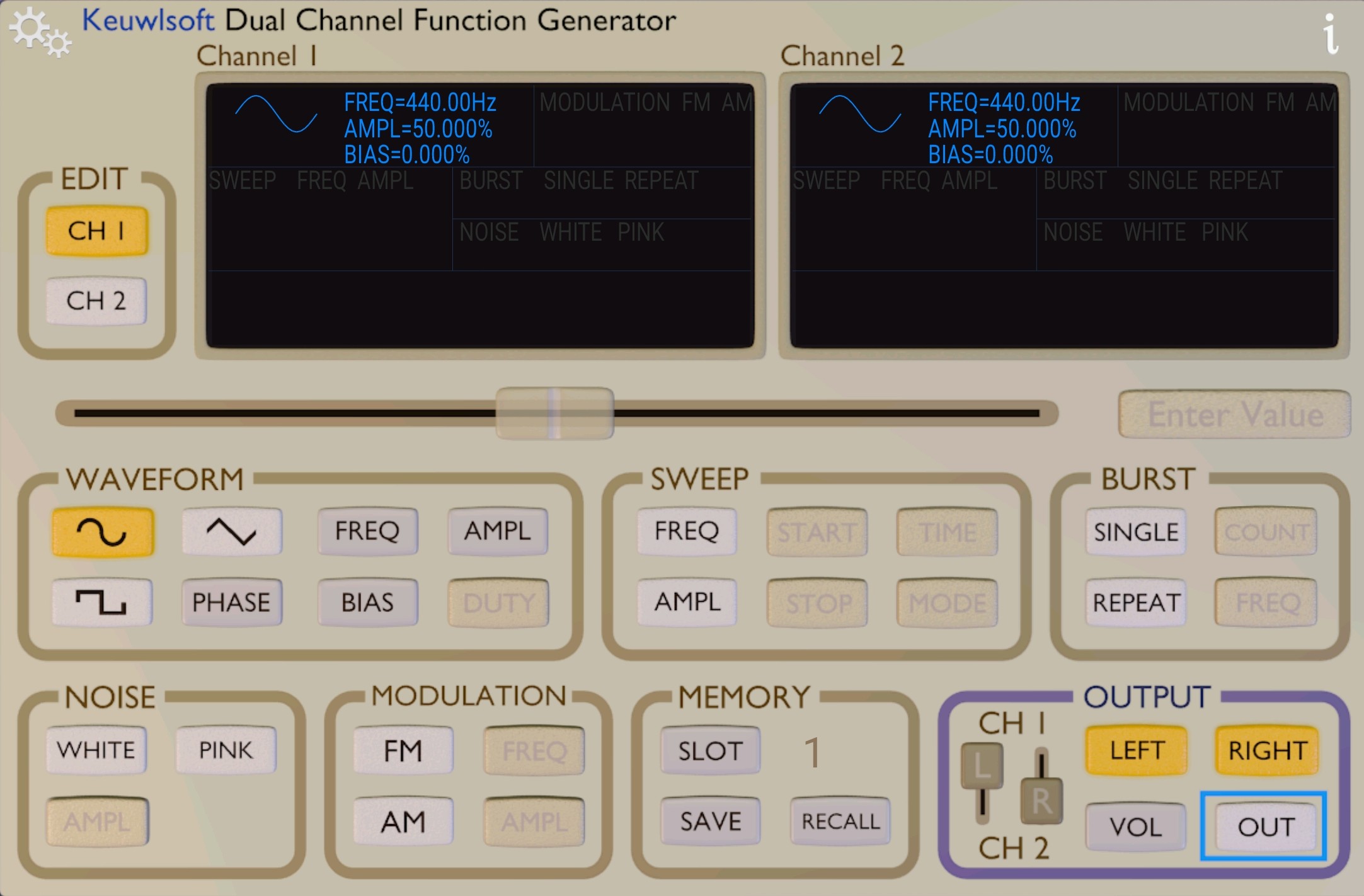
Check that the L and R sliders match the settings in the photo. This is important as it ensures the correct channel is selected.
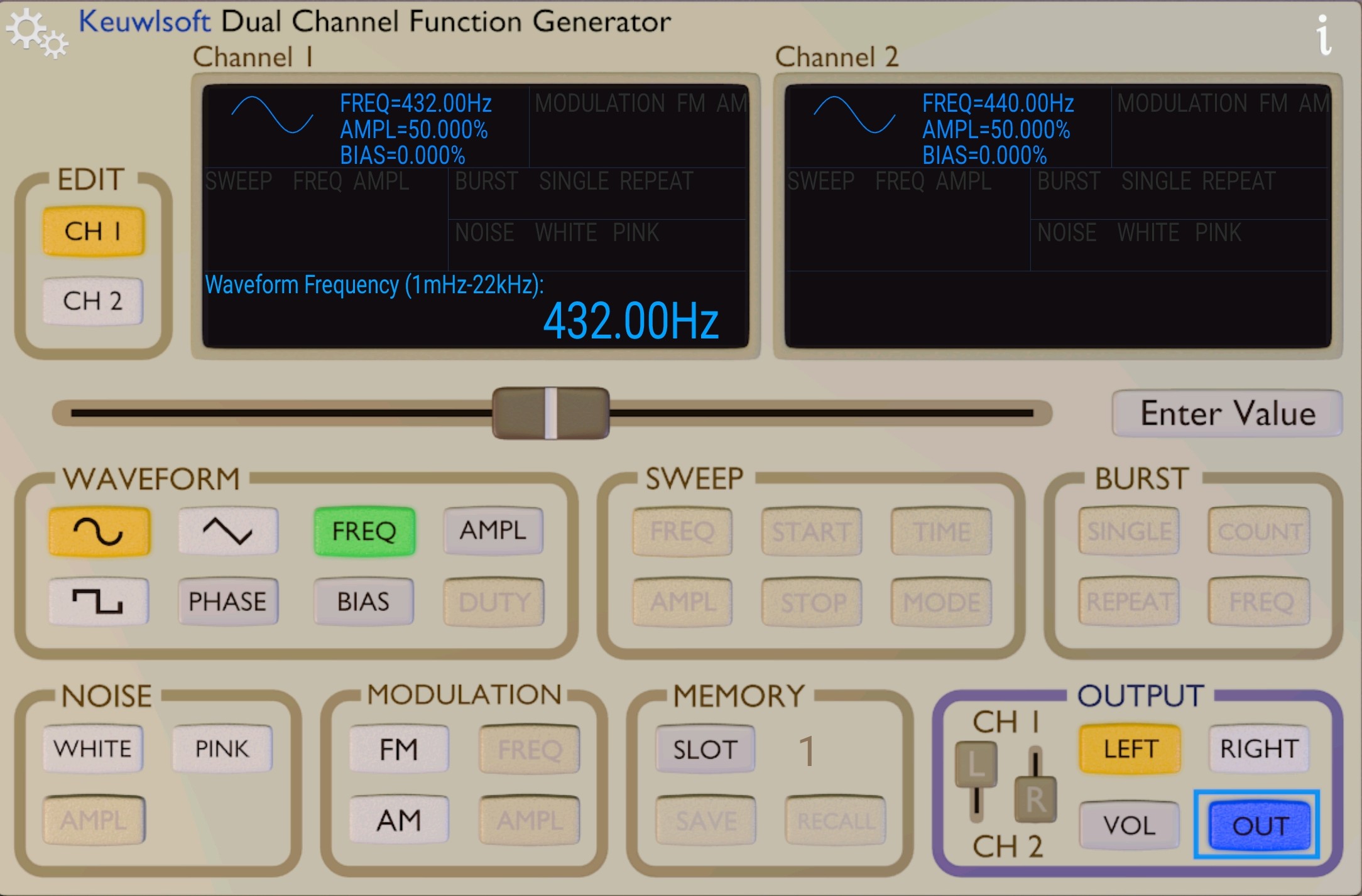
To set a frequency on CH 1, simply click on FREQ in the WAVEFORM section and type in the value in the Enter Value box. Then click the Hz button and the value will appear on the left-hand screen. As an illustration, we chose a frequency of 432 Hz—see photo below.
To set a frequency on the other channel, click CH 2 and again type the value in the Enter Value box followed by the Hz button. This value will now be displayed on the right-hand screen. We have illustrated this using 7.83 Hz in the photo below.
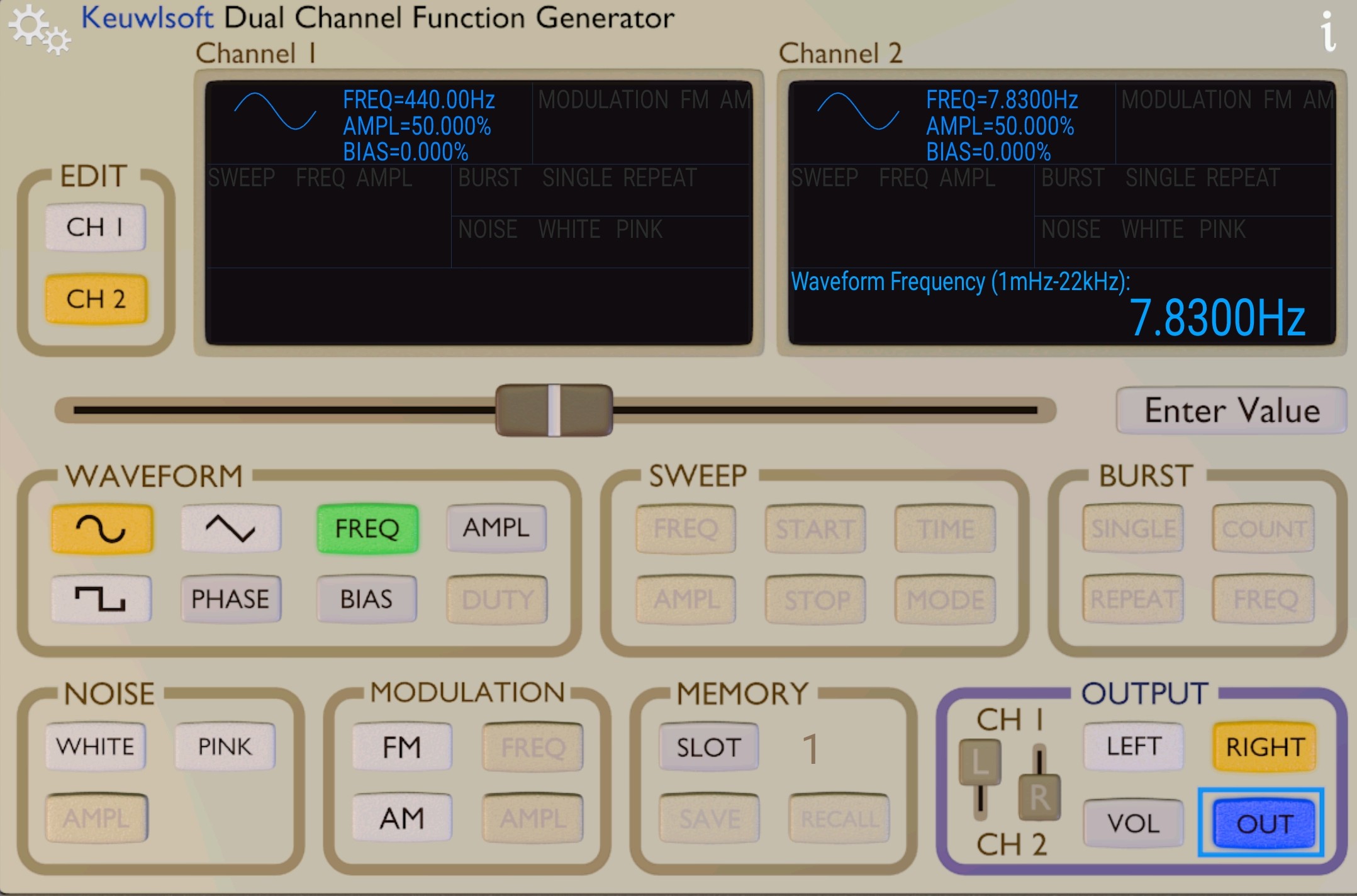
The setup is now complete. To activate the coils, simply click on the OUT button in the OUTPUT section. By clicking the LEFT and RIGHT buttons, you can activate either channel or both simultaneously.
If you only want one coil, then simply connect it to CH 1, which is assigned to the LEFT output. The screen should then appear as in the photo above, displaying 432 Hz.
A final tip is to attach a pair of headphones to check the outputs of your phone; you only need to use a moderate volume setting. Please note: all the default settings of the app, including VOL, work perfectly, so there is no need to adjust them.